Theme Update via Easy Updates Manager Plugin
Always take a backup before updating the theme.
Refer to “Important Notes Before Updating…” before update.
You can update the theme using a third-party plugin such as Easy Updates Manager.
1. Download the Updated Theme File
Download the latest theme version from the Envato account used to purchase the theme.
Use the Installable WordPress file only (.zip).
2. Install and Activate the Easy Updates Manager Plugin
Go to Plugins → Add New.
Search for Easy Updates Manager.
Install and activate the plugin.
3. Upload the Updated Theme
The remaining steps are similar to installing a theme:
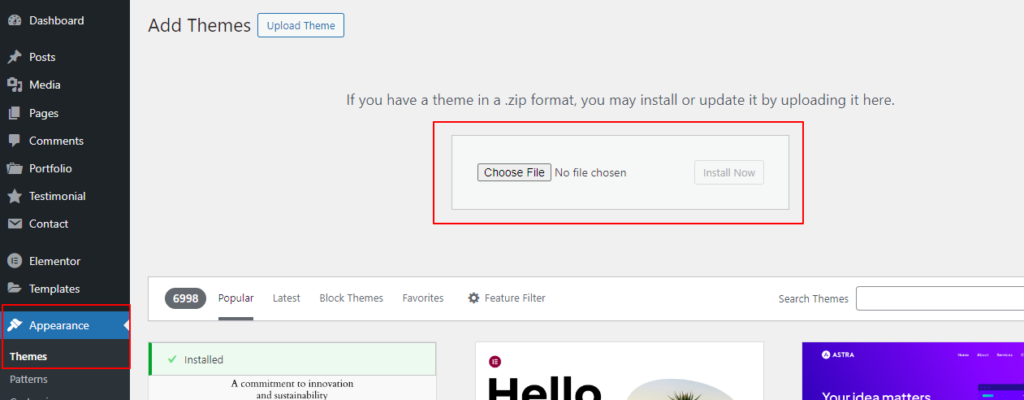
- Go to Appearance → Themes.
- Click Add New at the top of the page.
- Click Upload Theme.
- Select the updated theme .zip file and click Install Now.
Since the theme is already installed, WordPress will display a message.
Click “Replace active with uploaded” to proceed with the update.
The theme will be automatically updated and activated. Very unlikely, but if it is not activated automatically, activate it manually from the Themes page.
Step 4: Verify the Update
Once the upload is complete, go to Appearance → Themes in your WordPress admin panel and confirm that the theme is updated to the latest version.